CHESSMASTER-INFINITY
A downloadable Chessmaster11 MOD for Windows
Download the game from: https://www.myabandonware.com/game/chessmaster-grandmaster-edition-gra
For the custom themes go to discord: https://discord.gg/zNj2GcZybf
---Fixed notation bars info not showing info for some notations and the tine not being logged for some moves !---
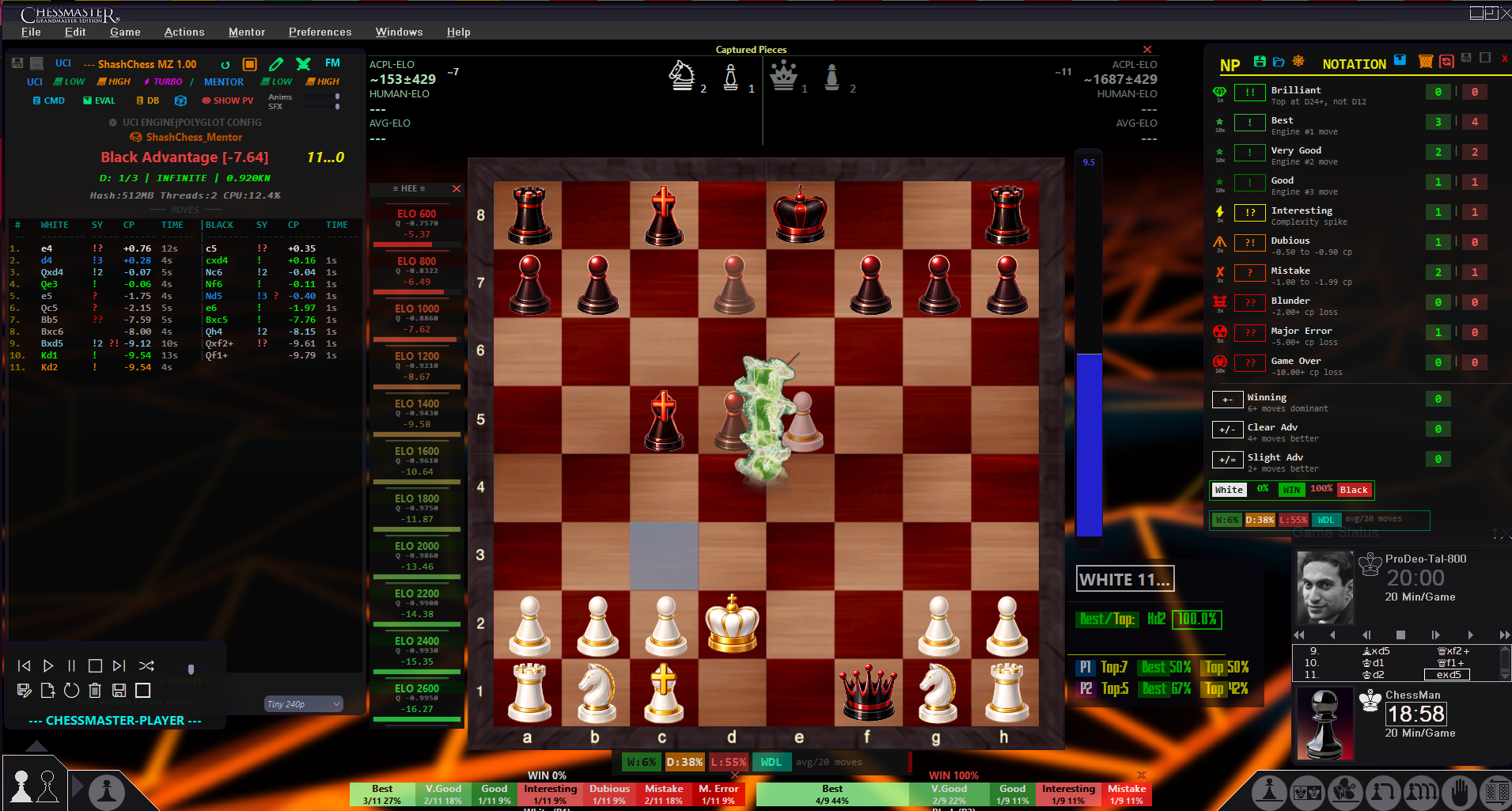
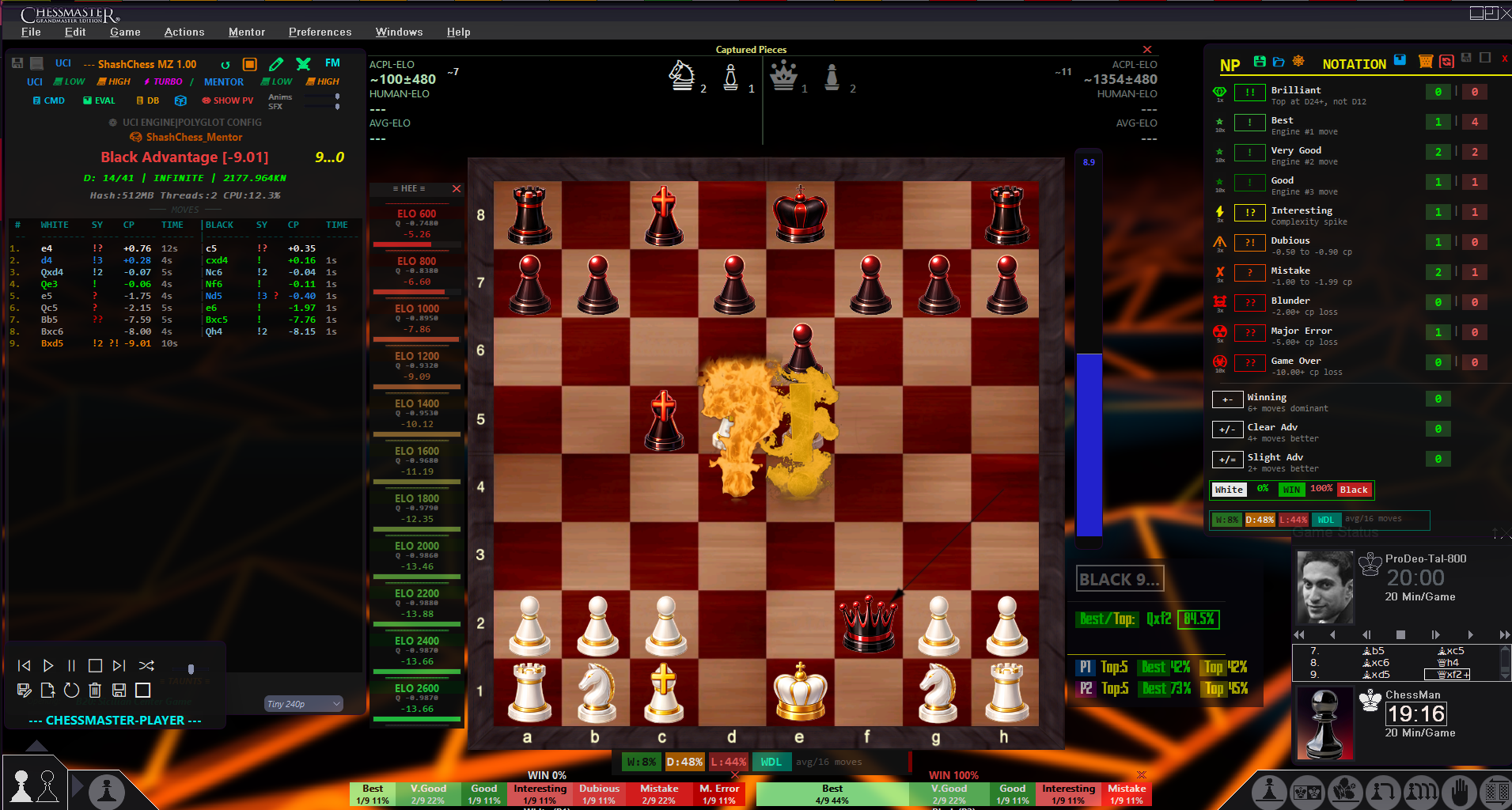
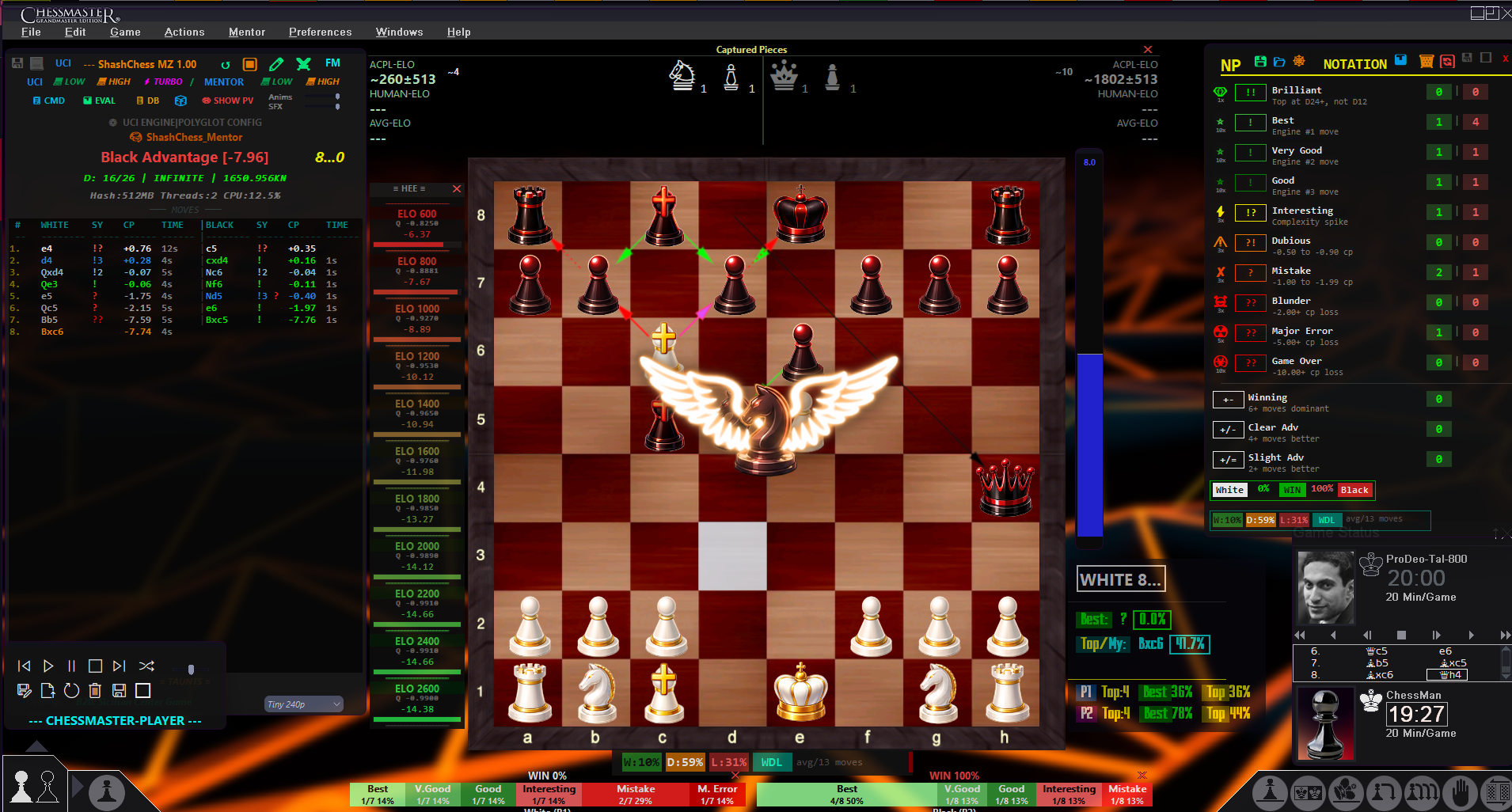
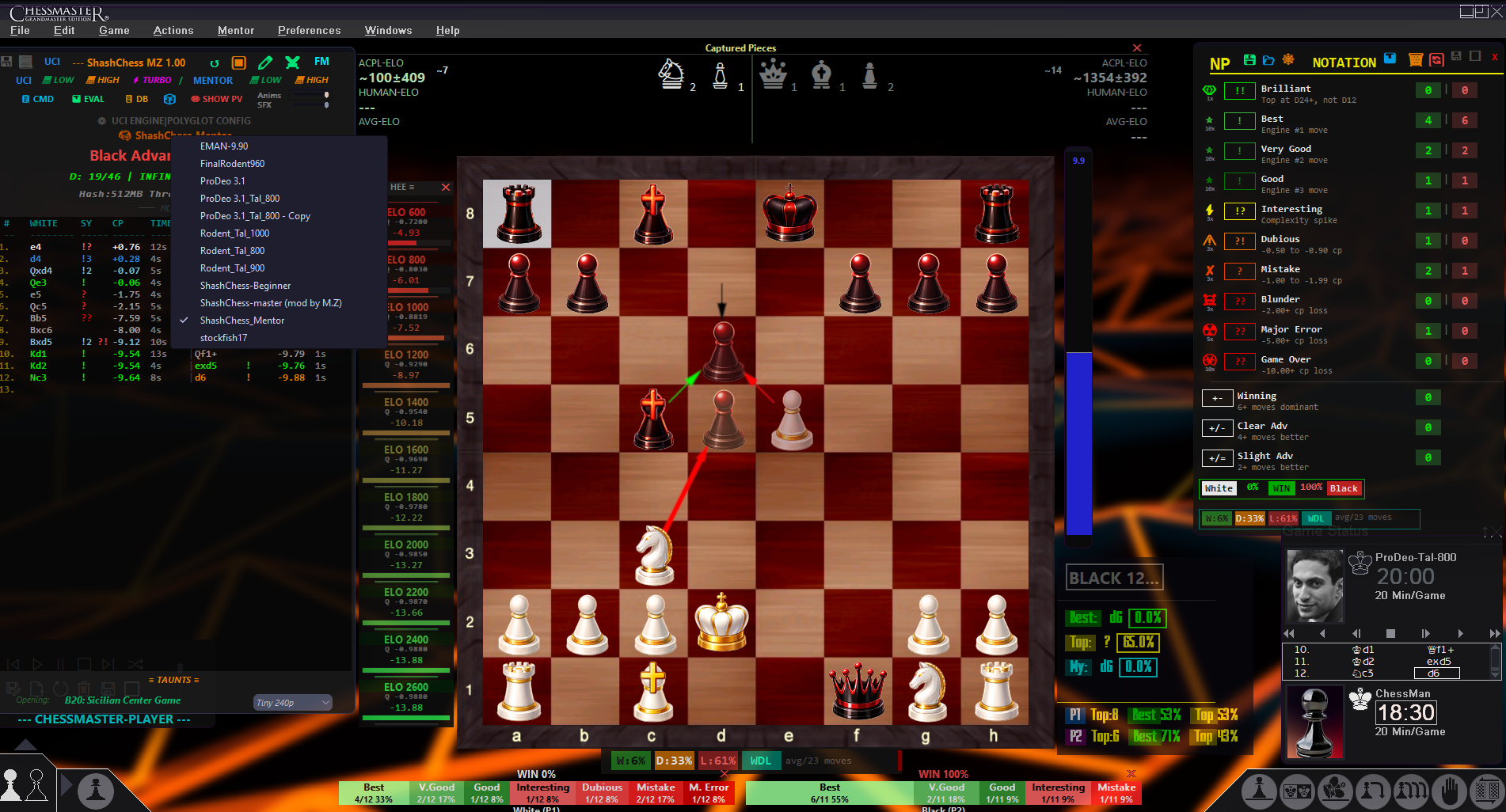
ChessMaster 11 - UCI Analysis System
A comprehensive AutoHotkey v2 script that wraps ChessMaster 11 with UCI engine analysis, real-time notation tracking, game database, rich visual feedback, and advanced graphing systems.
QUICK SUMMARY OF FEATURES
- Full UCI engine integration with live analysis, WDL graphs, MultiPV display
- Custom OSD system with resizable windows, layout save/load, drawer toggles
- Notation scoring engine with 10+ move quality tiers, SFX queue, animated companions
- Capture detection and piece display with a custom chess font
- Move log with per-glyph coloring in RichEdit
- Polyglot log scraping for real-time game state
- Child process architecture for non-blocking video preload
- 3-in-1 unified evaluation graph (EVAL + ELO + WDL) with scrollable timeline
- Maia 3 WDL Graph (showing move probabilities for every elo bracket as well as ELO-WDL/move)
- HEE Graph (showing all Human estimated evaluations/elo bracket/move)
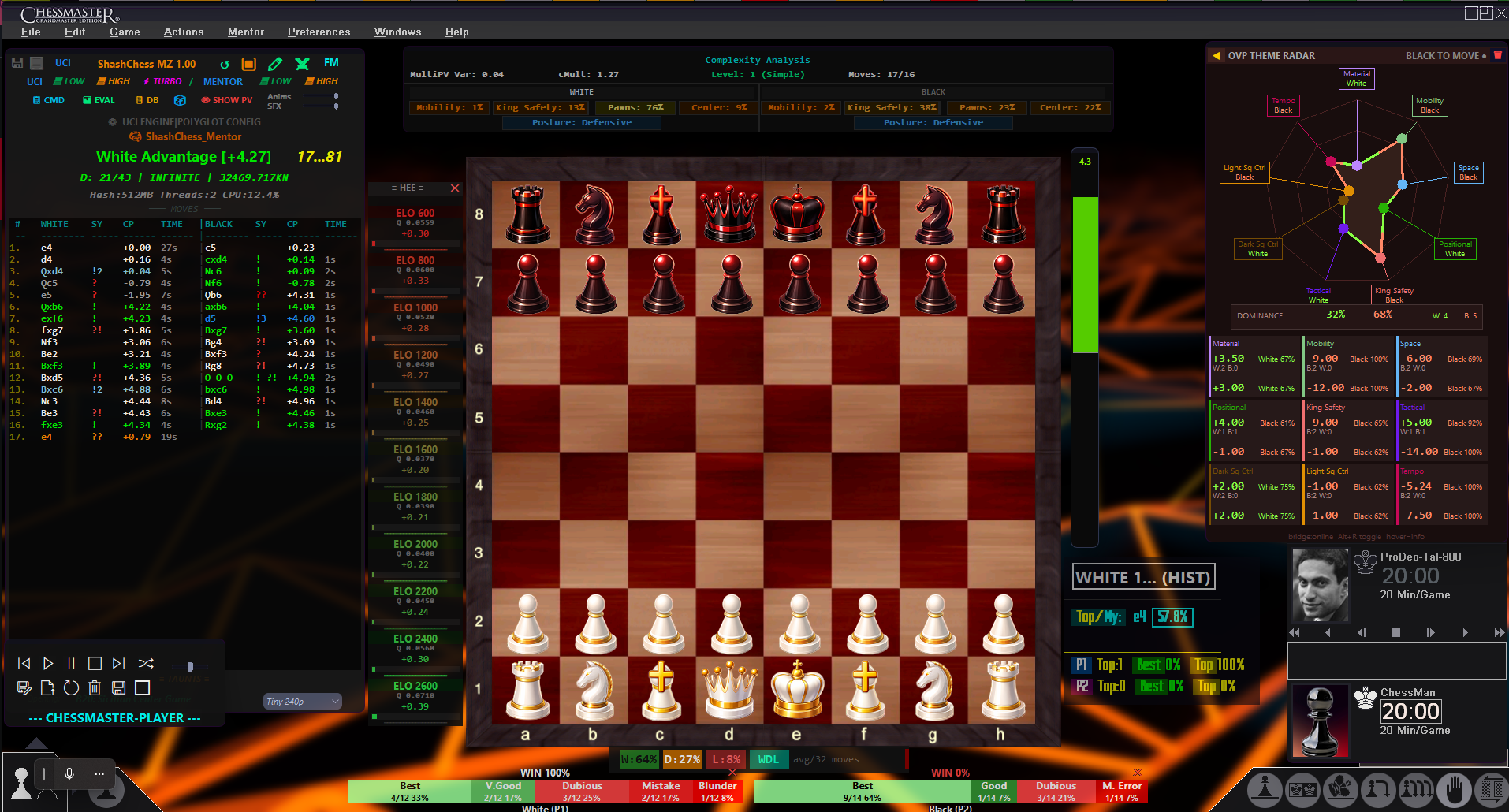
- Complexity Analysis window with real-time positional metrics
- Complexity fullscreen graph with collision-free label placement
- Interactive graph tooltips on hover for all data elements
- Game database with full eval/ELO/WDL/complexity data persistence
- Persistent annotation system with auto-saving and real-time mini-board synchronization
- Dynamic mentor and engine profile switching with real-time OSD feedback
- Integrated Polyglot INI Config Editor for live engine tuning
Implemented Features (ChessMaster Mod)
1. PV Boards (Principal Variation Boards)
- Functionality: Dynamic 6-board grid (1 Main, 5 PVs) synchronized with engine analysis.
- Interactivity: Independent navigation per board, click-to-sync, and hover-scrollable move lists.
- State Management: Persistent layout and board state synchronization with the main engine analysis.
2. Maia 3 Engine Integration
- Directory:
MAIA3/ - Functionality: A neural network model trained on millions of human games from Lichess.
- System Offerings: Unlike standard engines, Maia 3 predicts the most probable move a human player would make at a specific Elo rating. It focuses on mimicking human decision-making and playstyles rather than brute-force engine-perfect moves, providing a more natural opponent or analysis partner for human games.
- Graph Integration: Includes a dedicated fullscreen tab in the Evaluation Graph (Tab 5) for deep-dive analysis of human-like move predictions.
Maia 3 OSD History Browsing
- Functionality: Real-time bidirectional navigation through the current game's engine evaluation history.
- Shortcuts:
A / D(Single tap) orCtrl + Left/Right(Power user). - Behavior: Scrolling back in time updates the OSD to show historical "Best Move", "Probability", and "Top Human Move" for that specific ply.
- Persistence: Historical engine evaluations are saved directly into the
games_db.ini, allowing for instant review of engine insights when loading past games from the database.
Training Maia 3 OSD
- Hotkey:
Alt+B - Behavior: Temporary popup window that appears on every move during gameplay or analysis.
- Display Data:
- Engine's Best Move (SAN)
- Player's Move (SAN)
- Probability of the Best Move
- Probability of the Player's Move
- "Top Move" (Most common human move at that Elo level)
- Auto-hide: Automatically hides after 5 seconds.
Ranked Maia 3 OSD
- Hotkey:
Ctrl+Alt+B - Behavior: Persistent tracking window that toggles on/off.
- Display Data:
- P1 (White) and P2 (Black) statistics:
Move Count: Total moves playedBest Count: Moves matching engine's #1 choiceTop Count: Moves matching top 3 human moves
- Accuracy Display: Visual percentage based on Best/Top counts
- Tracks session performance across all Elo levels simultaneously.
- P1 (White) and P2 (Black) statistics:
3. HEE (Human Estimated Evaluation)
- GUI: Dedicated HEE OSD bar.
- Functionality: Human Estimated Evaluation system based on a proprietary formula.
- System Offerings: It provides positional metrics that better align with human perception, bridging the gap between raw engine centipawn evaluations and the positional nuance often understood by human players.
- Graph Integration: Includes a dedicated fullscreen tab in the Evaluation Graph (Tab 6) for visualizing HEE trends over the course of the game.
4. Move Log UI Modernization
- Technology: Both the Live UCI Log and Database Move Log use advanced RichEdit controls with custom message-handling.
- Precision Alignment: Implemented a
PARAFORMAT2tab-stop system (defined in twips) for pixel-perfect synchronization between both log windows. Columns (#,WHITE,SY,CP,TIME,|,BLACK) remain perfectly aligned regardless of move notation length. - Read-Only Polish: A global
WM_SETCURSORhandler suppresses the standard text-entry I-beam cursor, forcing a professional Arrow Pointer across all read-only analysis windows (UCI Log, DB Log, PV Boards). - Performance:
- Named Timer Debouncing: High-frequency board redraws during scrolling are buffered (15ms) to ensure a silky-smooth UI experience.
- Wheel Delta Accumulation: Optimized for modern high-precision mice, ensuring exactly one ply of movement per wheel notch.
5. Robust SFX System (see Core Features #12)
6. Engine Synchronization & Timing
- Feature:
_DelayUIUntillogic. - Purpose: Synchronizes raw engine move logging with CM11 board animations, preventing UI updates (like showing a "Game Over" result) until piece animations have fully completed.
7. Radar OVP Analysis (Overall Positional Visualization)
- Functionality: Positional/Tactical analysis visualization displaying 9 theme scores (Material, Mobility, etc.) for the side to move, computed via the chessagine bridge server.
- System Offerings: Displays 9 distinct theme scores (Material, Mobility, Space, Positional, King Safety, Tactical, Dark/Light Square Control, Tempo). It utilizes the
chessaginebridge server (port 3100) to map raw evaluation into a normalized, visualized state, providing a snapshot of the "Overall Positional" profile.
Core Features
1. Shash UCI Engine Integration
- ShashChess is launched as a UCI engine via named pipe communication (non-blocking)
- Real-time analysis output parsing for best moves, scores, depth, and PV lines
- Engine runs continuously, providing live evaluation as games progress
- Pipe buffer is drained at ~60fps to prevent blocking
- Error Resilience: Engine logging is wrapped in
try-catchguards to prevent script termination during file-access sharing violations.
2. Real-Time Notation & Glyph System
Tracks move quality using engine evaluation deltas:
- !! (Brilliant) - Score jumps +24+ cp from engine's perspective
- ! (Good) - Engine's #1 move
- !? (Interesting) - Complexity spike (evaluation fluctuation)
- ?! (Dubious) - Slight inaccuracy (-0.5 to -0.9 cp)
- ? (Mistake) - Clear error (-1.0 to -1.9 cp)
- ?? (Blunder) - Major mistake (-2.0+ cp loss)
- ?? (Major Error) - Catastrophic loss (-5.0+ cp)
- ?? (Game Over) - Decisive (-10.0+ cp)
- ∞ (Unclear) - High evaluation fluctuation
- □ (Only Move) - #1 vs #2 gap > 2.0 cp
Each glyph triggers sound effects (MP3) for immediate audio feedback.
3. Visual Notation HUD (NP - Notation Panel)
- Floating transparent overlay showing live notation stats
- Displays glyph counts per player (White/Black columns)
- WDL Display - Win/Draw/Loss percentages from engine evaluation:
- White's perspective: W%, D%, L% (white win, draw, white lose)
- Updates in real-time as engine provides WDL data
- Shows "avg/X moves" as running average
- Interactive: drag to move, click to toggle size, save/load position
- Custom draw graph showing score trajectory over game
4. Shash OSD (On-Screen Display)
Main status panel with:
- Engine thinking status (Waiting... / Thinking...)
- White/Black advantage indicator
- Current opening name
- Move history with glyphs and eval scores using modernized RichEdit layout
- Close button
5. Evaluation Graph Window (EvalGraphGui)
- Floating transparent window with scrollable horizontal timeline
- Unified 3-in-1 Layout (default mode):
- EVAL Section (40%) - Centipawn evaluation dots with connecting lines, notation glyphs (!!/?/etc.), score labels
- ELO Section (35%) - Progressive ELO estimation with 3 lines per player (ACPL-ELO, Human-ELO, Average-ELO), band fills between lines, connecting line rectangles
- WDL Section (25%) - Stacked bar graph (W/D/L) per move with percentage labels inside bars
- All three sections share a synchronized move timeline with labels at bottom
- Fullscreen Modes (right-click cycles):
- Tab 0 = Unified 3-in-1 layout
- Tab 1 = EVAL fullscreen
- Tab 2 = ELO fullscreen
- Tab 3 = WDL fullscreen
- Tab 4 = Complexity Analysis fullscreen
- Tab 5 = Maia-3 Analysis fullscreen
- Tab 6 = HEE (Human Estimated Evaluation) fullscreen
- Graph Features:
- Scrollable horizontally with mouse wheel
- Collision-free label placement with leader lines
- Glow effects on data labels when one player's value exceeds the other's
- Band fills between ELO lines showing accuracy spread
- Connecting line rectangles between consecutive dots
- Interactive Tooltips - Hover over any data element to see detailed info:
- EVAL labels: side, move number, evaluation score
- ELO labels: series name (W.ACPL, B.Hum, etc.) and value
- WDL bars: side, move number, Win/Draw/Loss percentages
- Header boxes: Moves count, cMult, and other metadata
- Position saves/loads with layout
6. Complexity Analysis Window (EloVarianceGui)
- 900x102px floating window with 35% transparency
- Title "Complexity Analysis" centered in cyan
- Info bar: MultiPV Variance | cMult | Level | Moves count
- WHITE/BLACK metric panels - 4 metrics per side + Posture row:
- Mobility - Piece activity in enemy territory with depth/composite/posture multipliers
- King Safety - Directional shield system with pawn bonuses, enemy penalties, attack detection
- Pawns - Structure quality with doubled/isolated penalties, chain bonuses
- Center - Control of central squares with exponential file weight falloff
- Posture - Attacking/Balanced/Defensive stance based on piece weight distribution
- Colored rectangles with 1px brighter borders, dark tinted backgrounds, dynamic text colors
- 7-level color gradients (green→red) for metric values
- Detailed tooltips with formula descriptions for all 12 metrics
- Right-click toggles between CapturesOSD and Complexity window
- G key toggle includes this window in hide/show cycle
7. Complexity Analysis Graph (Fullscreen Mode)
- Full-screen graph with 3 panels: MOBILITY+CENTER, KING SAFETY+PAWNS, POSTURE
- ELO-style label boxes with collision avoidance for each data point
- Band fills between paired series (White vs Black) for visual comparison
- Glow effects on labels when one side's value exceeds the other's:
- White glows are brighter (e.g.,
0x0055FFBB) - Black glows are darker (e.g.,
0x00224488)
- White glows are brighter (e.g.,
- Posture bars centered on move positions with WHITE/BLACK labels
- Side headers with panel titles and legends in larger fonts
- Data labels with 65px wide boxes and collision detection
- Interactive Tooltips - Hover over any label box to see series name, move number, and value
8. Captures Window (CapturesOSD)
- Displays captured pieces for both sides with visual icons
- ELO Values shown for both players:
- ACPL-ELO - Engine-calibrated ELO from accuracy
- HUMAN-ELO - Adjusted ELO accounting for blunders/mistakes/variance
- AVG-ELO - Average of ACPL and Human ELO
- ELO formulas:
ACPL = Total_Centipawn_Loss / Moves_Count ACPL_ELO = 2620 * exp(-0.022 * ACPL_trimmed) Human_ELO = ACPL_ELO - Blunder_Penalty - Mistake_Penalty - Variance_Penalty Blunder_Penalty = ELO * (1 - exp(-2.5 * Blunder_Rate)) Mistake_Penalty = Mistake_Rate * 120 Variance_Penalty = min(250, (ACPL_raw - ACPL_trimmed) * 4)
- Left side shows White's captures (Red), right shows Black's (Gray)
- Shows captured piece icons in RichEdit windows
- Toggle visibility via layout system
- Right-click toggles to Complexity Analysis window
9. EvalBar Window
- Vertical bar (50x500) showing current position evaluation
- Displays:
- Centipawn (cp) score
- Mate indicator if available
- WDL percentages (W/D/L)
- Color-coded: Green for White advantage, Red for Black
- Draggable, resizable
- Updates at 300ms intervals
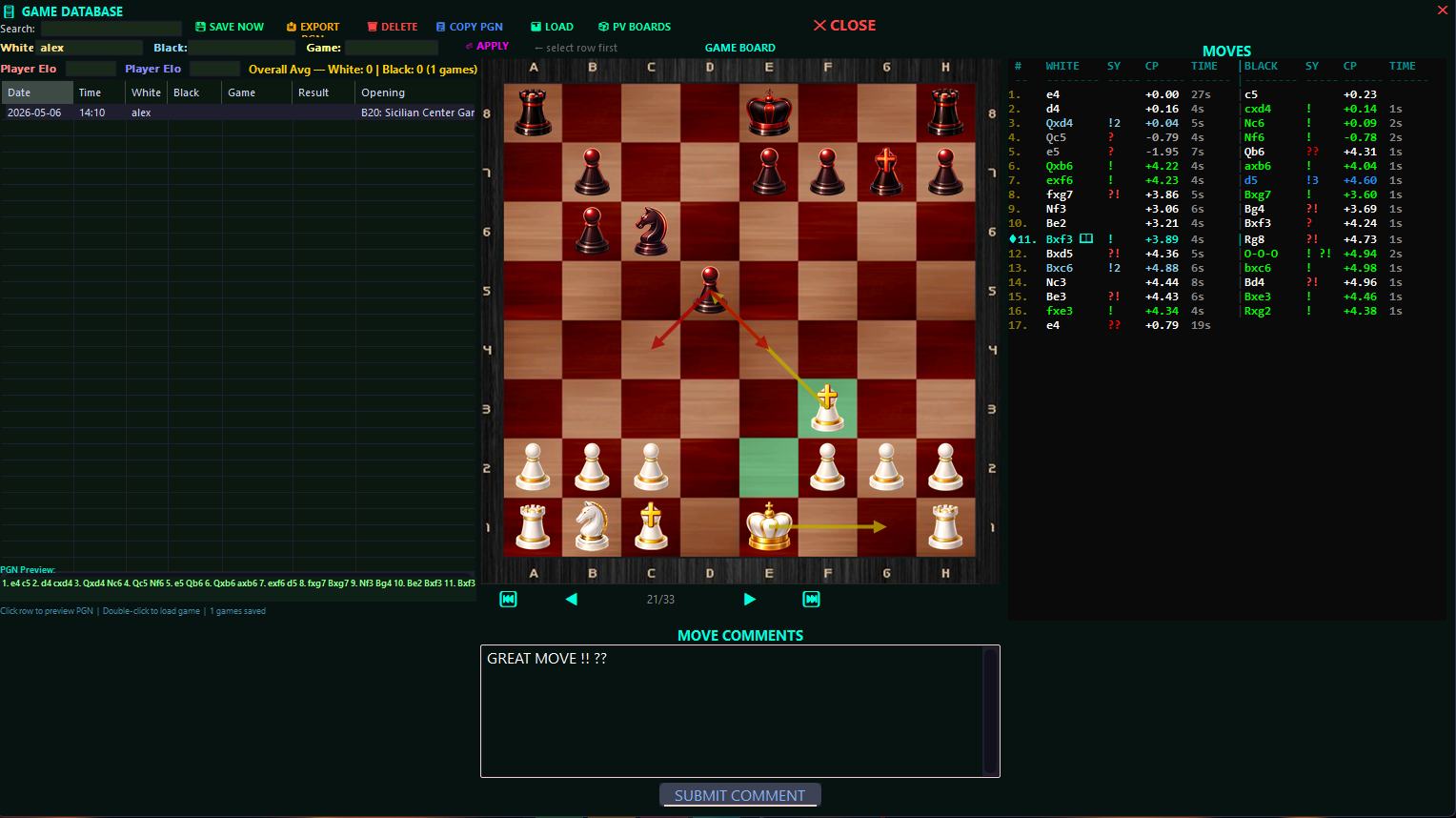
10. Game Database (PGN Storage)
Full game database with:
- 24+ columns: Date, Time, White, Black, Result, Opening, Moves, W-ACPL, W-Hum, W-Avg, B-ACPL, B-Hum, B-Avg, W!, W??, B!, B??, W-Avg, B-Avg, W-Acc, B-Acc, Game, Label
- Search with filter buttons
- Player inputs - Edit White/Black names
- PGN export - Full PGN with headers
- Load to OSD - Double-click loads game back into analysis
- ELO tracking - ACPL, Human, and Average ELO per game
- Complexity data persistence - All per-move complexity metrics saved and restored with games
- Maia History Persistence: Engine evaluation data (Best Move, Probability, Top Human Move) is saved for every ply, allowing for instant "post-mortem" analysis of any archived game.
- Precision Move Selection: Click-to-move detection uses Tab-Counting logic, ensuring accurate move jumping regardless of notation length or column width.
- Running averages - Cumulative ELO as you scroll
- WDL accuracy - Win/Draw/Loss % from Notation HUD
- Layout persistence - Saves/loads window position
- Full data restore - Loading a game from DB restores: eval values, WDL data, ELO progressions, notation tags, complexity metrics, and Complexity_White/Complexity_Black state
11. File Drawer
- Drag-and-drop files onto the drawer
- Files open with default Windows program (not internal editor)
- Windows appear above AHK OSDs
- Drawer visibility saves/loads with layout
12. Sound Effects (SFX)
Comprehensive MP3 sound triggers:
- Move sounds (bestmove, check, castle, capture)
- Piece-specific captures (pawn, knight, bishop, rook, queen, king)
- Game state (mate in 1-6, draw, time)
- Notation events (blunder, advantage, dominating)
- All-time stats persist across sessions
13. All-Time Stats Window
- Accessible via button in Notation HUD
- Shows aggregate notation counts across all games
- Game results: W (human wins as White), B (human wins as Black), E (engine wins)
- Human player identified by Settings.ini [Players] White name
- Position saves/loads with layout
14. Layout System
- All OSDs save position/size to Settings.ini on close
- Windows include: Shash_OSD, NotationHUD, EvalBar, CapturesOSD, EvalGraph, EloVarianceGui, FileDrawer, GameDB
- Auto-loads positions on startup
- Drawer visibility persists
- Right-click window state (CapturesOSD vs EloVarianceGui) saved as single
RightClickWindowkey
15. Intro Video Playback
- Plays INTRO.mp4 or INTRO.mov on script startup
- Uses Windows Media Player ActiveX control (WMPlayer.OCX.7)
- Always-on-top, borderless, windowless video rendering
- Auto-destroys after playback completes
16. Drawing System
- Hotkey:
Shift+D— 3-state toggle (Off → Setup → Active → Off) - 3 States:
- Off: UI and overlay layer hidden
- Setup: Toolbar visible + click-through overlay layer; resize/drag layer to align with the chess board
- Active: Toolbar hidden, overlay layer remains visible and click-through (non-blocking)
- Drawing Controls (when layer is aligned over board):
- Middle-drag: Draw arrow
- Middle-click on same square: Draw circle
- Modifier colors: None=Green, Shift=Red, Ctrl=Yellow, Alt=Blue
- Left-click outside board: Clears all drawings
- Tapping the same arrow/circle toggles it off
- Toolbar Buttons (Setup mode only): Save / Delete / Delete All / Toggle Grid
- Per-ply persistence: Drawings are saved per ply in
Draw_DB, so navigating moves restores the correct drawing set for each position - Click-through overlay: Layer uses
WS_EX_TRANSPARENT, so it doesn't block game interaction - Grid toggle: Optional board grid overlay for alignment
- Mini-Board Synchronization: Drawings created on the main game board are automatically saved and rendered on the Database window's mini-board during navigation.
- Auto-Hide: Drawing layers automatically hide when the Database window is dismissed.
17. Animation & Volume Controls (UCI Main Window)
Located in the Shash OSD (UCI Engine Main Window), these controls manage animation playback and sound effect volumes:
Volume Sliders
- Anims Slider (0-100): Controls the volume for companion animation playback (via
ffplay) - SFX Slider (0-100): Controls the volume for MP3 sound effect playback (via
ffplay) - Sliders persist their values to
Settings.ini - Clicking either button toggles the respective animation system and updates the button color accordingly
18. Mentor & System Management
- Mentor Selection Menu: Accessible via the Mentor button (
🧠 [Name]) in the Engine OSD. Dynamically scans theWinboard/directory for available engine profiles. - Engine Config Editor: Opens a dedicated UI (
⚙ ENGINE|POLYGLOT CONFIG) to modify the active engine'sPolyglot.inifile. Renders smart controls (sliders, checkboxes) based on the INI content. - Seamless Personality Integration: Selecting a mentor automatically updates the internal Chessmaster
user.inito match the personality, ensuring visual and engine consistency. - OSD State Indicators: Swapping mentors or toggling the database window triggers real-time OSD confirmations to verify the current active mode.
19. Hotkeys
All hotkeys require Game.exe or ChessMaster window to be active:
| Key | Action |
|---|---|
A / D
| Dual-Navigation: Board Prev/Next + Maia OSD History Navigation |
Ctrl + Arrows
| Maia OSD History Browsing (Back/Forward) |
Alt+Q
| Nuke Stockfish processes |
Shift+D
| Toggle Drawing System (3-state: Off → Setup → Active) |
Shift+Q
| Toggle move quality bars (MQBarW/MQBarB) |
Shift+S
| Toggle SFX variant set (V-prefix sounds) |
Ctrl+Shift+S
| Save snapshot + manual game save to database |
Ctrl+Shift+L
| Save layout (all window positions) |
Ctrl+L
| Load layout |
Alt+D
| Toggle database window |
S
| Toggle EvalBar visibility |
B
| Toggle blunder alert |
R
| Restart UCI engine |
1
| Mentor mode - LOW (2 Threads) |
2
| Mentor mode - HIGH (8 Threads) |
X
| Stealth mode (hide/show all OSDs) |
W
| Send Ctrl+F10 (ChessMaster shortcut) |
F
| Send Ctrl+F (ChessMaster shortcut) |
Q
| Send Ctrl+B (ChessMaster shortcut) |
Z
| Send Ctrl+I (ChessMaster shortcut) |
E
| Send Ctrl+V (ChessMaster shortcut) |
Esc
| Kill engine processes, reset EvalHistory and graph |
F7
| Toggle file drawer visibility |
C
| Toggle file drawer visibility |
Shift+C
| Toggle CMD (Legend) window |
F9
| Toggle Shash OSD / Engine OSD resize |
F8
| Toggle media player resize |
G
| Toggle graph mini mode |
N
| Toggle Notation HUD visibility |
3
| Suspend all hotkeys |
4
| Resume all hotkeys |
| Right-click on Graph | Cycle through graph tabs (Unified → EVAL → ELO → WDL → Complexity) |
| Right-click on CapturesOSD | Toggle to Complexity Analysis window |
| Right-click on Complexity window | Toggle back to CapturesOSD |
Architecture
Data Flow
- Game.exe → ChessMaster 11 UI (the chess program)
- ShashChess → UCI engine via pipe → AHK parses output
- EvalHistory[] → Array storing each move's evaluation data:
val- Centipawn evaluationshash_val,shash_set,shash_wdl_w/d/l,shash_wdl_set- Engine analysis datamaia_best,maia_prob,maia_top- Maia History PersistenceevalTag,wasBest- Notation metadatawELO,bELO,wHumanELO,bHumanELO,wAvgELO,bAvgELO- ELO progression datacx_wMob,cx_wCenter,cx_wKing,cx_wPawns,cx_wPost- White complexity metricscx_bMob,cx_bCenter,cx_bKing,cx_bPawns,cx_bPost- Black complexity metrics
- NotationCounts → Map tracking glyph frequencies
- GameStats → Per-game stats (blunders, best moves, etc.)
- AllTimeStats → Persistent INI file for career stats
- Complexity_White/Complexity_Black → Current move's complexity state
- Complexity_GameData[] → Historical complexity data array
Key Variables
EvalHistory[]- Move-by-move evaluation data (including Maia insights)GameStats- Current game statisticsAllTimeStats- Career statisticsNotationCounts- Live notation trackingThinkingSide- Which side the engine is analyzing_GameDB- In-memory game database arrayGraphTooltipRects[],GraphTooltipTexts[]- Interactive graph tooltip dataComplexity_White,Complexity_Black- Current complexity state objectsComplexity_GameData[]- Historical complexity entries
Complexity Formulas
Mobility:
- Base: pieceValue × advancement in enemy half (White ranks 5-8, Black ranks 1-4)
- Developed pieces get partial credit: Rank 3/6: 0.15×, Rank 4/5: 0.35×
- Composite multipliers: depth factor (0.3x-2.0x), composite factor (0.5-1.5), posture factor (Attacking ×1.3, Balanced ×1.0, Defensive ×0.6)
King Safety:
- Directional shield system: front shield ×3 (direct), ×2.5 (diagonal), ×1.5 (2 files away)
- Side shield ×2, rear pieces ×0.5
- Castled bonus: +15, Uncastled center after move 8: -15
- Pawn Shield Bonus: +12, Pawn Wall Integrity: +18/+8
- Material Advantage: +0.5 per point (max +15), Advanced Pawn Zone: +4
- Enemy penalties, defender attack detection, no friendly pieces within 4 Manhattan squares → 0%
Pawn Structure:
- Base: 100, -12 per missing pawn, -20 doubled, -15 isolated
- Proximity penalty: -3 per Manhattan distance unit from nearest friendly pawn (threshold >2)
- Chain bonus: +10 per diagonal chain link (max +30)
Center Control:
- Exponential file weight falloff: d/e=1.0x, c/f=0.5x, b/g=0.25x, a/h=0.125x
- Core (d4/e4/d5/e5): pieceValue × 3 × fileWeight
- Extended center: pieceValue × fileWeight
- Pawn attacks weighted by fileWeight, enemy threats deduct contested piece value
Posture:
- Attacking: >55% piece weight in enemy half
- Defensive: <35% piece weight in enemy half
- Balanced: 35-55%
- Enhanced: undefended attacks, outnumbered defenses, fork detection, king zone pressure, pin detection, pawn attacking pieces
Files
Settings.ini- Layout positions, player names, right-click window stategames_db.ini- Game database (PGN + stats + eval data + complexity data + Maia history)AllTimeStats.ini- Persistent career statssnapshotsDB/- Manual snapshot saves
Dependencies
Required
- ChessMaster 11 (game.exe) - The chess program
- ShashChess-MZ - UCI analysis engine
- SFX_Preload.ahk - Preloads sound files for low-latency playback
- SFX_Anim.ahk - Manages companion animation overlay (GIF/WebM) via child process
- ffmpeg.exe - Video encoding for WebM animations (alpha channel support)
- Node.js - Required to run the tactics analysis bridge server
- TypeScript (
npx ts-node) - Used to execute the analysis bridge server located inchessagine-tactics-analysis/server.ts
Required Assets
- Fonts: The following font files are required for UI rendering:
Davidas.otfLUCEFONT.TTFMAGNFONT.TTF
- Radar System Files:
Radar.ahk,radar_card_edit.py,radar_colors.py,radar_edit.py,radar_fix.py,radar_perspective.py,radar_state_edit.py,radar_ui_edit.py
Optional
- mpv.exe / mpv/ folder - Alternative video player (not currently used; intro video uses Windows Media Player ActiveX)
- ffplay.exe, ffprobe.exe - FFmpeg utilities (included with ffmpeg build)
Sound Files (MP3)
- Move sounds:
bestmove.mp3,check.mp3,castle king side.mp3,castle queen side.mp3, etc. - Piece-specific captures:
pawnX*.mp3,knightX*.mp3,bishopX*.mp3,rookX*.mp3,queenX*.mp3,kingX*.mp3 - Notation events:
brilliant*.mp3,good*.mp3,interesting*.mp3,dubious*.mp3,mistake*.mp3,blunder*.mp3,major*.mp3,gameover*.mp3 - Game state:
mate In *.mp3,draw.mp3,time.mp3,book.mp3,en passant.mp3,pawn promotion.mp3 - Side-specific:
white blunder.mp3,black blunder.mp3,white dominating.mp3,black dominating.mp3,white mates.mp3,black mates.mp3
Purchase
In order to download this Chessmaster11 MOD you must purchase it at or above the minimum price of $5 USD. You will get access to the following files:
Download demo
Leave a comment
Log in with itch.io to leave a comment.